 Neon
Open-source · Python 3.10–3.13 · runs on your own machine
NeonClipping: the open-source clipper that cuts 9:16 clips on your own machine
NeonClipping reads a long stream, finds the loud and quotable moments, cuts only those ranges and renders them at 1080×1920 with captions burned in.
This site is an independent guide to NeonClipping: what it does, what has to be installed, and which parts never run in a browser.
- Licence
- AGPL-3.0 / MIT, free
- Opens at
- 127.0.0.1:8770
- Needs
- Python + FFmpeg
Last verified: 28 November 2026 against github.com/iamajmeena/neonclipping (README, CHANGELOG & AGPL-3.0 LICENSE).
What you can settle about NeonClipping here, with nothing installed
- Whether NeonClipping does what you need before you download anything
- Whether your Python version, OS and FFmpeg setup match its requirements
- The exact commands for Windows, macOS and Linux
- How it compares with a paid cloud clipper
What this site does not do
- It does not clip your video: that runs on your computer
- It does not host clips or run a public clip feed
- It is not the project's official site
NeonClipping encodes full-length video locally—automatic face layouts, Deep mode optical flow, live-stream clipping and 4K export all require the desktop app on your machine, not a web page.
What NeonClipping actually does
One long video in, a handful of vertical clips out. The tool's job is deciding which ninety seconds are worth keeping.
How it picks moments
NeonClipping works from the transcript and the audio energy of the source. Loud reactions, sharp changes in pace and quotable lines score higher; an 80-minute stretch of nothing much scores lower. The ranges that win are cut, reframed to 9:16 and rendered with captions.
NeonClipping gives you two modes to set the trade-off: Fast mode downloads audio first (about 79 MB for an 85-minute stream), reuses YouTube's word-timed captions when available and downloads only the winning video sections; Deep mode downloads the full file and adds optical flow for cleaner action cuts. Across both modes, the app ships 11 native vertical layouts (including automatic facecam border detection, split-screen gameplay and blurred fill) and word-timed captions in 52 languages plus Hinglish, with styles such as GTA Neon, Impact, Clean, Hormozi and MrBeast alongside SRT and WebVTT export.
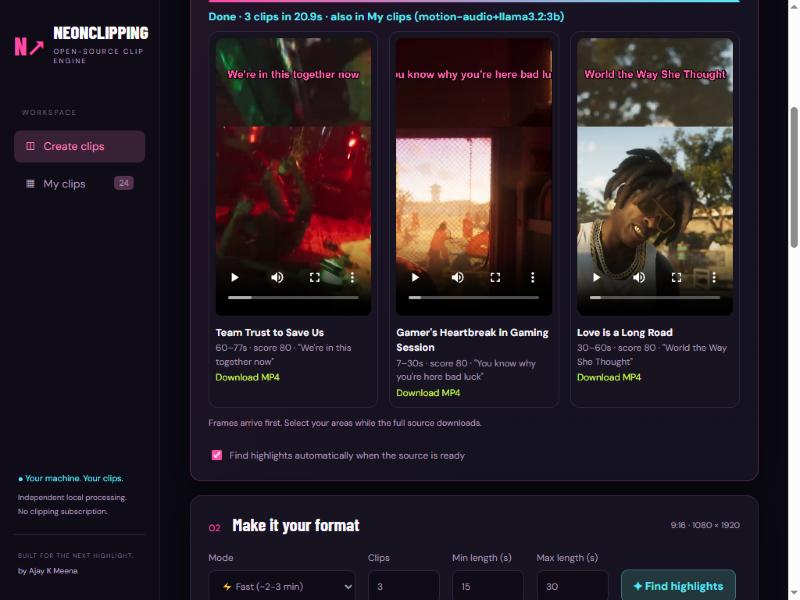
127.0.0.1:8770: paste a YouTube, Twitch or Kick link (or local MP4) and run Make clips locally. (Source: iamajmeena/neonclipping docs)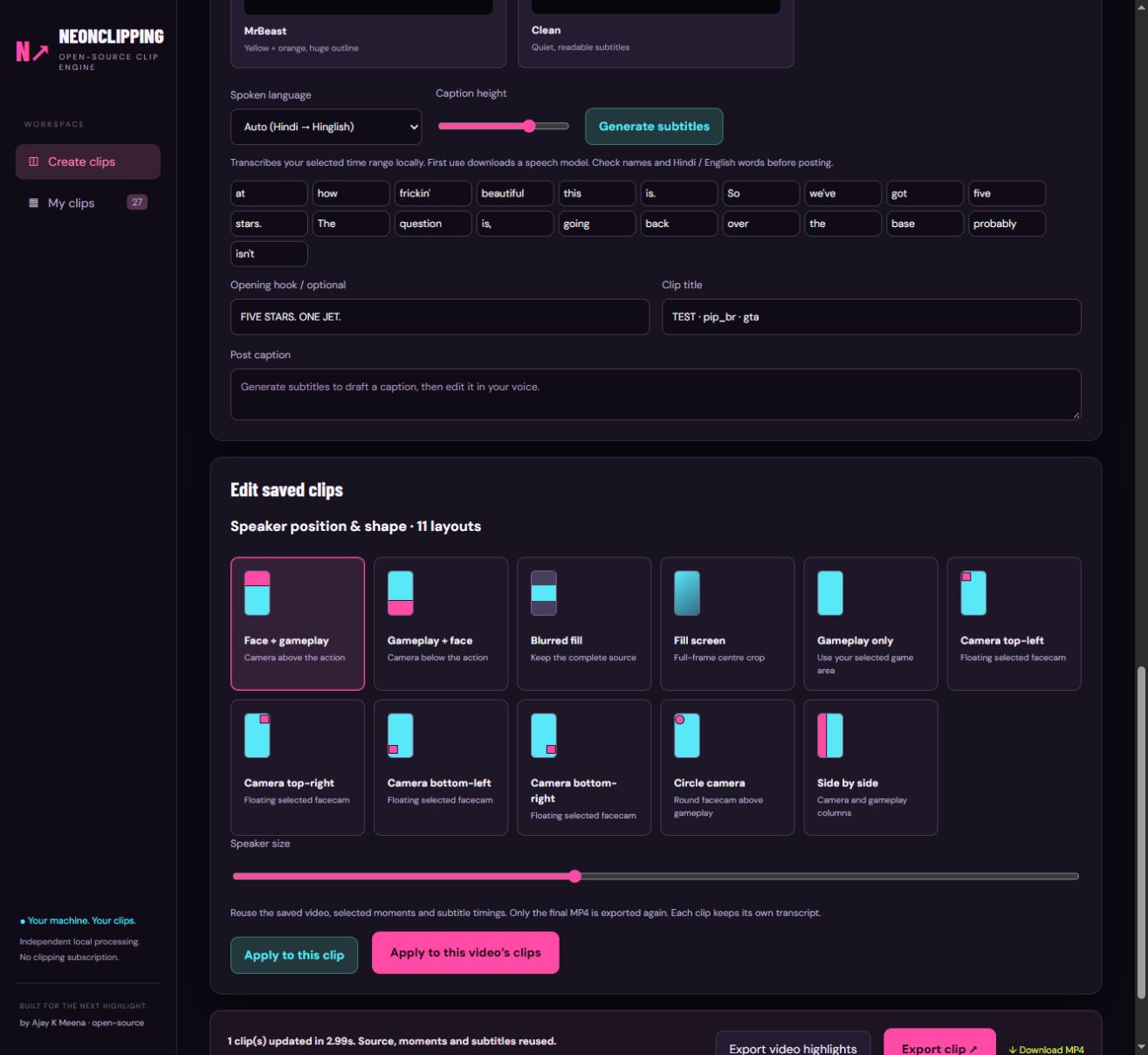
How one NeonClipping job runs
From a fresh install to exported vertical MP4s, every step runs through the local web interface at http://127.0.0.1:8770.
NeonClipping step 1: launch and point at a source
Start the app on your PC, open
http://127.0.0.1:8770in your browser, and paste a YouTube link, Twitch VOD or Kick URL—or click Upload video to pick a local MP4 from disk.NeonClipping step 2: choose layout, mode and Make clips
Keep Fast mode for long streams, set a clip length window (for example 30–80 seconds), pick a facecam layout and caption style, and press Make clips so NeonClipping scans the transcript and audio peaks.
NeonClipping step 3: cut, reframe, caption
Only the chosen ranges are rendered, cropped to 1080×1920 (or up to 4K when the source supports it) with face-aware framing and burned-in captions.
NeonClipping step 4: write the hook
Each clip gets a viral score, an opening heading and a hook line. With Ollama (
llama3.2:3b) installed this runs locally too; without it the clip still cuts from audio and motion scores.NeonClipping step 5: edit or save to disk
Preview each clip card, adjust words or switch among all 11 layouts in My clips → Edit clip without re-downloading the source, and click Download MP4. No watermark, no credits, no queue.
Desktop-only features in NeonClipping: live streams and 4K export
NeonClipping live-stream clipping from Twitch and YouTube chat
NeonClipping can watch live chat activity on Twitch and YouTube Live while a broadcast is still running, cutting highlights starting roughly 24 seconds before a chat-velocity spike instead of waiting for the full archive.
NeonClipping 4K export and vertical caption safe zones
NeonClipping renders vertical clips at 1080p by default and up to 4K (2160p) when 4K source quality is selected, keeping burned-in captions and face-tracked crops clear of short-form UI overlays on your own disk.
NeonClipping on Android and iPhone: Wi-Fi phone remote, no mobile app
There is no native Android APK or iPhone App Store build, and a phone cannot run the video encoder on its own. However, starting the desktop app with Start-NeonClipping-Phone.bat (or NEONCLIPPING_LAN=1) enables a mobile browser remote at /m on the same Wi-Fi network, locked behind a 6-digit PIN. From Chrome on Android or Safari on iPhone, you can watch the live chat-hype meter, tap Clip now (10 s, 20 s, 30 s or Auto), and preview or save finished clips while your PC does the rendering.
What NeonClipping needs installed first
Two hard requirements, one optional extra. The first two are what decide whether the install takes five minutes or an evening.
| Piece | Required | Why |
|---|---|---|
| Python 3.10–3.13 | Yes | The project supports this range; a newer or older interpreter is the usual cause of a failed install |
| FFmpeg on the PATH | Yes | Every cut and render is an FFmpeg job |
| Ollama + llama3.2:3b | Optional | Adds an AI title and hook line to each clip |
Windows gets a single NeonClipping-Setup.bat from the project's releases page (installing into %LOCALAPPDATA%\NeonClipping with no admin rights required); macOS and Linux get install.sh. Once it starts, the interface is served locally at 127.0.0.1:8770.
NeonClipping privacy, accounts and usage limits
Because NeonClipping runs on your own machine rather than a hosted SaaS server, its privacy rules and practical limits come from local hardware, not subscription tiers.
Accounts, personal files and network calls
No account or sign-up. NeonClipping requires no email, no login and no payment card. Releases before 24 November 2026 used the MIT licence and current releases use AGPL-3.0; running it on your own PC for personal or creator clips remains completely free.
Local files stay on your disk. By default the server binds only to 127.0.0.1:8770. Personal MP4s, local Whisper transcripts, Ollama prompts, saved edits and five-star preference ratings (data/feedback.jsonl) never leave your computer.
Only three optional actions touch the network: fetching public media when you paste a YouTube, Twitch or Kick link; enabling optional Cloud AI (Groq, OpenRouter, Gemini, OpenAI or LM Studio) on a slow PC, which sends candidate transcript text only—never video—using your own key in data/llm.json; or connecting your own YouTube, Instagram or TikTok credentials under My clips → Publish a clip.
| Boundary | How NeonClipping handles it |
|---|---|
| Daily clip or minute limits | None. Unlimited clips, sessions and MP4 exports with no credits or watermarks. |
| Local MP4 file size | No software cap; bounded only by your free disk space, RAM and CPU or GPU speed. |
| Streams over 2 hours | Never downloaded whole at once (a 24-hour 1080p VOD is roughly 46 GB); you select up to a 2-hour window per run, or split multi-hour transcripts into ~25-minute chatbot parts. |
| Saved-clip trim range | 3 to 180 seconds in My clips → Edit clip while original source files remain in data/. |
| Live recording & Creator watch | One live stream at a time; unattended Creator watch stops after 3 hours (NEONCLIPPING_LIVE_AUTO_HOURS) or when free disk drops below 8 GB (NEONCLIPPING_MIN_FREE_GB). Manual live sessions have no time cap. |
| Videos without YouTube captions | Twitch VODs and local MP4s use local Whisper transcription, which is accurate on GPU but slower on CPU-only machines. |
NeonClipping vs a cloud clipper, in short
- Cost: free and open-source, against a monthly subscription with a clip or minute allowance.
- Where the video goes: it stays on your disk, against an upload to someone else's servers.
- Setup: Python and FFmpeg, roughly ten minutes the first time, against signing up in a browser.
- Long sources: a three-hour VOD is a normal job, where cloud free plans cap minutes, resolution or storage days.
If you cannot install software on a PC or need full cloud editing on a phone, hosted tools such as OpusClip, Vizard, Klap, Eklipse and CapCut run in the browser with free-tier credit, resolution or watermark limits. If you prefer containerised self-hosting on a server, open-source Docker projects such as SupoClip, OpenShorts and Reelsaw cover the same job in a compose stack.
NeonClipping vs OpusClip side by side → · Compare free self-hosted and cloud alternatives →
The key questions people ask about NeonClipping
| If you are asking… | Read this |
|---|---|
| How do I install it, and why did it fail? | NeonClipping install on Windows, macOS and Linux |
| How do I cut my first clip step by step? | NeonClipping beginner tutorial (127.0.0.1:8770) |
| Can I control it from Android or iPhone? | NeonClipping on phone: Wi-Fi remote & 6-digit PIN |
| Where is the real repo, and what is AGPL-3.0? | NeonClipping GitHub repository, releases & licence |
| Is it better than a paid clipper? | NeonClipping vs OpusClip |
| What else could I use? | Self-hosted and cloud alternatives |
| Can I just use it online? | Is there a browser version? |
NeonClipping FAQ
Is NeonClipping free?
Yes. NeonClipping is completely free to run on your own computer, with no account registration, no watermark, no monthly credits and no per-clip charge — only your own hardware and electricity. Versions before 24 November 2026 were released under MIT, and current releases use AGPL-3.0.
Can I use NeonClipping in a browser?
No hosted browser clipper exists: video cutting and rendering require Python and FFmpeg on your computer. Once installed on your PC, NeonClipping opens its own local interface in your browser at 127.0.0.1:8770, while this independent guide lets you check requirements and steps online before downloading anything.
Does NeonClipping work on Android and iPhone without an app?
No. There is no native Android APK or iPhone app, and a phone cannot run the clipping engine by itself. However, if NeonClipping is running on your PC with phone access enabled (Start-NeonClipping-Phone.bat or NEONCLIPPING_LAN=1), you can open its /m remote page in Chrome or Safari on the same Wi-Fi, enter the 6-digit PIN, watch live chat hype, trigger clips and save finished MP4s without installing an app.
Is this the same as clipping for the streamer N3ON?
No. That is a different thing: a paid clipping programme for a streamer's community. NeonClipping here is Ajay K Meena's open-source tool that clips long videos on your own machine.
Do I need an NVIDIA GPU?
No. A CPU-only machine produces the same clips, just more slowly. The project's timings were measured on an RTX 2060 with 16 threads in Fast mode.
Does it work with Twitch and Kick, or only YouTube?
YouTube links, Twitch VODs, Kick and local MP4 files all work. Continual live-stream clipping from chat activity is a desktop-app feature.
How long does one job take?
The project measured 97 seconds for an 85-minute YouTube stream and 136 seconds for a 3-hour Twitch VOD on an RTX 2060 (16 threads, Fast mode, 3 clips). Expect longer on a CPU, and longer when local Whisper has to transcribe a source without YouTube captions.
Is this the official NeonClipping site?
No. It is an independent, non-official guide. The project lives at github.com/iamajmeena/neonclipping and was built by Ajay K Meena.